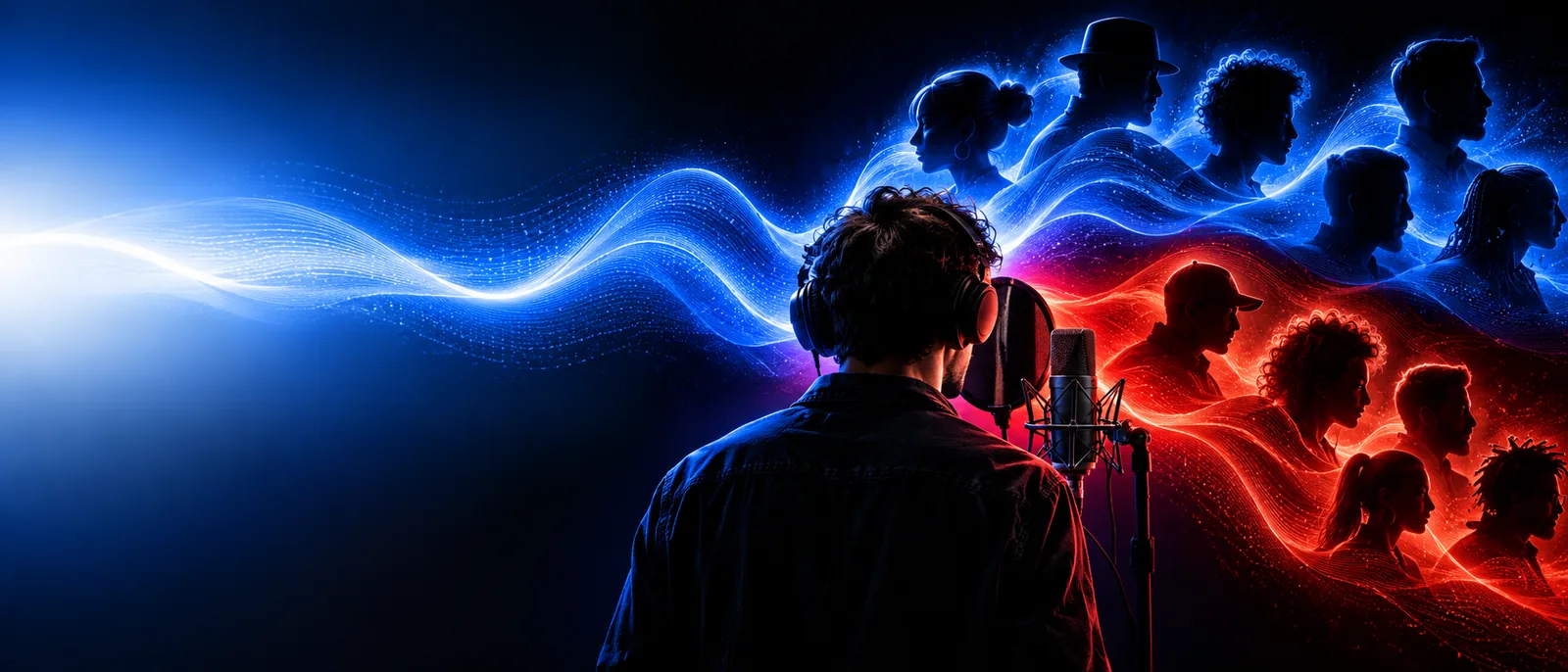
DIY voice effects

Wondering how to make your own voice changer for free?

Start with a short recording and one effect at a time. This guide shows how to make your own voice changer for free using an audio editor you can access, then check whether the result still sounds clear.

Review options before sharing audio
Voicechanger hero artwork

symptom

A voice changer that sounds wrong usually needs a more specific diagnosis than “add more effects.” Identify what you hear before changing another setting.

Character storyteller

The altered line sounds deeper, but words have become muffled. Keep the original recording and compare a shorter test phrase before adding more processing.

Aim for a recognizable character tone without sacrificing consonants. For a separate mobile workflow, see the linked Android guide.
how to use voice changer on android

Desktop narrator

The voice has a metallic edge after a large pitch change. Reduce the shift, listen for artifacts, and test one additional tone adjustment at a time.

Find a setting that survives a full sentence, not just a single vowel. The linked PC guide covers a device-specific approach.

how to use voice changer on pc

Short-video creator

Music masks the voice, making it hard to tell whether the effect works. Mute the music and judge the processed speech on its own first.

Keep the words intelligible before mixing the clip. If you would rather explore a browser-based route, compare the linked option.

voice changer online

Comedy sketch maker

The first take is funny but every later line sounds different. Write down the adjustments and reuse the same microphone position for another take.

Make the effect repeatable across a scene. The linked examples offer other directions for character ideas.

voice changer examples funny

elimination order table

Treat this as an ordered checklist: finish each check before moving to the next. Otherwise, two changes can hide which one helped.

  1. 1

    Check the dry recording

    Record ten seconds of ordinary speech in a quiet place. Listen through headphones. If the original clips, hisses, or loses words, fix the recording or microphone distance first; an effect will not restore missing detail.

  2. 2

    Try one modest pitch shift

    Duplicate the recording, leave one copy untouched, and change the duplicate's pitch by a small amount. Compare both at the same listening volume. If the edited voice becomes warbly, undo the shift and try less.

  3. 3

    Adjust tone only if needed

    If the pitch is useful but the result sounds dull or thin, make a restrained tonal adjustment with your editor's equalizer. Toggle it off and on. Keep the change only when speech is easier to understand.

  4. 4

    Test a complete line

    Play a full sentence with quiet and loud words, not just a sound effect or one syllable. Note the settings that worked and retain the untouched recording so you can restart without rebuilding the take.

each fix's steps

A DIY voice changer can reshape recorded speech, but it cannot solve every source problem. Use these limits to decide what to correct before another edit.

1

It cannot repair a clipped take

Distortion already captured by the microphone may remain obvious after you lower the pitch or change the tone. Processing can even make the damaged syllables stand out.

What to do instead

Record again with more distance from the microphone or a lower input level. Compare the new dry take before applying the saved effect.

2

It cannot guarantee natural speech

Extreme pitch shifts can make vowels unstable and consonants difficult to understand. Different voices also respond differently to the same adjustment.

What to do instead

Reduce the shift, test several sentences, and favor a clear performance over an exact pitch target.

3

It does not automatically reach live calls

Editing a file and changing microphone audio in real time are different workflows. Exporting a changed clip alone does not route it into a call or game.

What to do instead

Use a separate live-audio setup if that is your goal, and verify the microphone route in a private test before speaking to others.

4

It cannot grant permission to imitate someone

A technically convincing voice effect does not make it appropriate to impersonate a real person or present altered speech as their own.

What to do instead

Create an original character, get consent where relevant, and label edited speech when a listener could mistake it for a genuine recording.

Think of the comparison as an editing checkpoint: the processed version should sound intentionally different while preserving the words in the original.

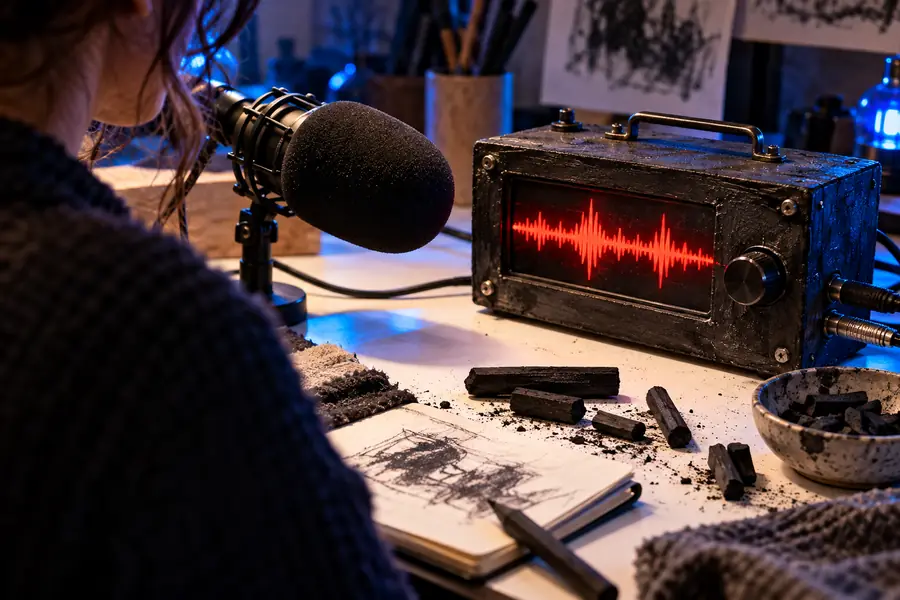
Illustrative image representing an unedited voice recording
Dry take
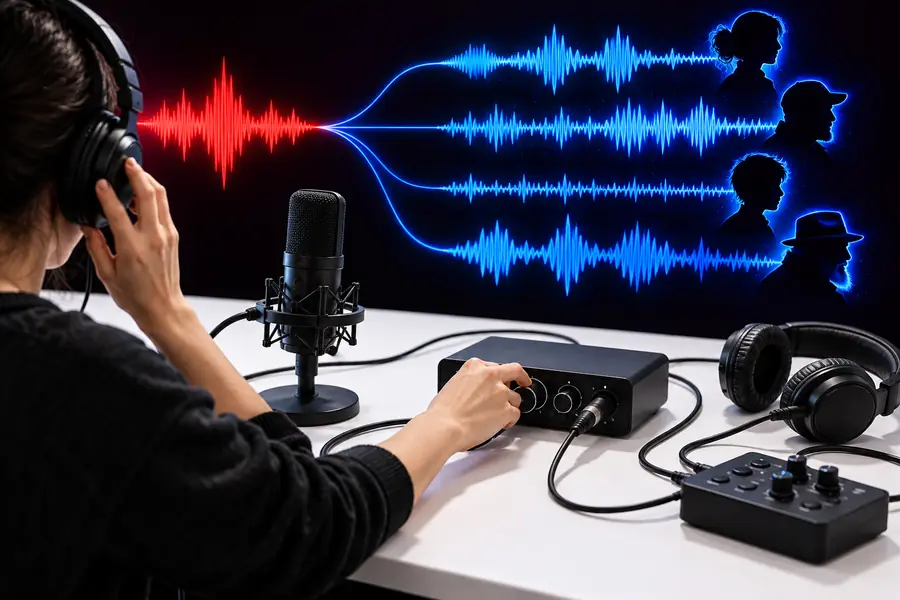
Illustrative image representing a planned voice effect
Edited take

These images illustrate the workflow, not an audio result. To judge your own before-and-after, play both takes at the same volume, listen for clear consonants, and ask whether the changed voice suits the character.

Dry takeEdited take

how to avoid recurrence

Keep a simple record of each effect. The best prevention is a clean source take and a way to return to it when an experiment goes too far.

Repeatable workflow Hard-to-repeat workflow
Source audio Save an untouched copy before editing. Apply effects directly to the only copy.
Recording space Use a consistent, relatively quiet position. Move between noisy rooms for each line.
Effect order Change pitch first, then assess tone. Stack several effects before listening.
Listening test Compare complete sentences at matched volume. Judge only a short vowel or louder preview.
Settings Note adjustments that produce a usable character. Rely on memory between recording sessions.
Final check Listen on another speaker or headphones. Assume one playback device tells the whole story.

A manual edit is useful for understanding what pitch and tone do, but it takes listening and revision to make a voice changer sound right. If you want to explore voice options instead, visit the linked product and check its available workflow before sharing a recording.

Explore another way to shape your voice

  • Keep your original recording
  • Compare changed and unchanged speech
  • Check clarity before using the result
Explore voice options

tutorial FAQ

You need a way to record your voice, headphones for careful listening, and an audio editor with a pitch adjustment. An equalizer is useful but optional. Save the original file before trying effects so every experiment is reversible.

Yes. For recorded audio, you can use an editor's existing pitch and tone controls rather than writing software. A live microphone effect is a different project because it also needs suitable audio routing.

A large pitch shift, noisy source audio, or several stacked effects can introduce audible artifacts. Return to the dry take, apply a smaller change, and compare a complete spoken sentence. If the original is distorted, rerecord it first.

Not necessarily. The steps here create an edited recording; they do not automatically change your live microphone signal. For live use, you would need a compatible real-time setup and should test its input and output routing privately.

Record from a similar microphone position and save the adjustment order and settings you used. Compare each new line against a reference sentence from the first session. Small, repeatable changes are easier to match than extreme effects.

Explore voice tools
Explore voice tools