PC audio guide

How to Use Voice Changer on PC for Your Audio

Start by deciding whether you want to change a recording or speak through a voice changer during a live conversation. Those jobs use different audio routes, and choosing the wrong one is why a convincing preview can still sound unchanged to everyone else.

Check available options on the next site
Voicechanger visual introducing tools for working with spoken audio

decide which case you are (decision table)

Before changing settings, identify where the original sound comes from and where the changed sound needs to go.

  1. 1

    Identify your source

    For a recording, your source is an audio file or a clip you have already captured. For a live call or game, it is usually the physical microphone connected to your PC. Say which one you have before opening a voice changer: a file cannot become your call microphone merely because you can play it back, and a microphone test does not prove that an exported recording exists.

  2. 2

    Identify your listener

    If the result will be placed in a video, podcast, or message, follow Path A and listen to the saved output. If another person must hear the effect while you speak, follow Path B and test the input selected inside the call or game app. A local preview answers what you hear on your PC; it does not establish what that app sends.

  3. 3

    Check the route before the effect

    Record a short dry sentence and confirm that the original microphone works without processing. Then try a modest voice change and compare the two takes at similar volume. On PC, device selection, microphone permission, monitoring, and export settings can each interrupt the route independently. Fix a silent or misrouted signal before adjusting the effect.

path B

For live speech, the receiving app must use the processed input, not your untreated physical microphone. The cards below show where that distinction matters.

Voice chat participant

You hear an altered preview in your headphones, but friends report your normal voice. Check whether the chat app still has your physical microphone selected. If your chosen voice changer provides a processed or virtual input, select that input in the chat app and run its microphone test.

A test recording made inside the chat app contains the altered speech, not just the local preview.

voice changer for discord

Game player

Your desktop test works, yet the game sounds unchanged. Look for the game's own voice-input setting; it may override the Windows default. Restart the game's voice session after selecting a processed input, if your software offers one.

Another player can confirm the result in a private, permitted test before you join a wider conversation.

best voice changer for roblox

Remote presenter

You need clear live speech rather than a dramatic character effect. Test with ordinary sentences and headphones to catch feedback. Keep the microphone at a steady distance, then check the meeting app's input and noise-processing options.

A short test call reveals whether words remain intelligible to a listener on the other end.

ai voice changer online

Short-form creator

You speak live while capturing a screen recording. Confirm which input the capture app records; its microphone can differ from the one your call app uses. Make a brief sample, stop capture, and listen to the resulting video rather than relying on headphone monitoring.

The captured clip contains the intended voice instead of a silent or untreated microphone track.

voice changer examples funny

final check

Verify the sound at its destination. Your headphones, the receiving app, and the saved file can reveal different results.

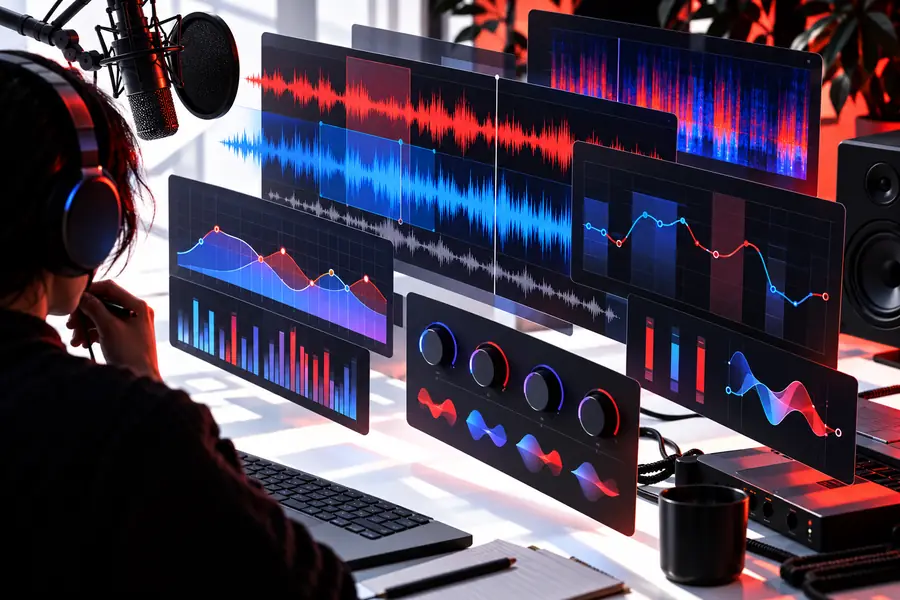
Illustrative view of several overlapping voice-editing interfaces
Local setup
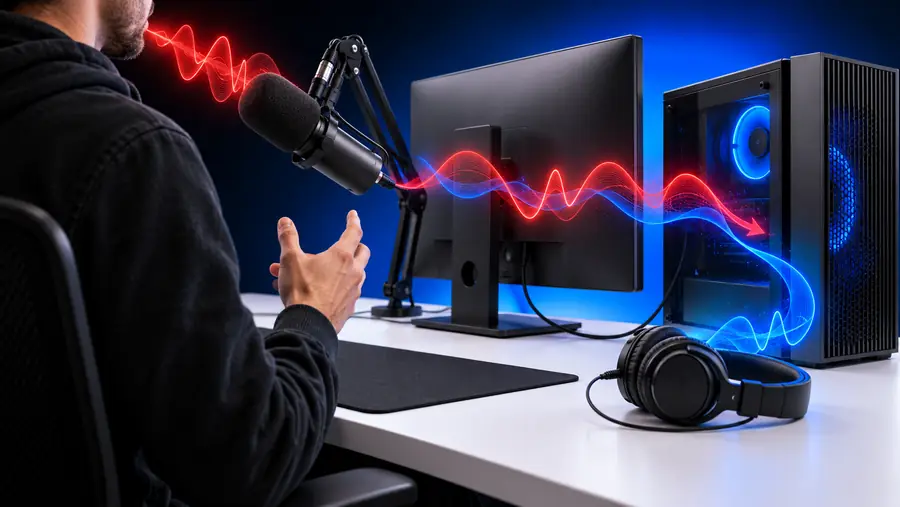
Illustration accompanying the PC voice-changing workflow
Destination test

These images illustrate the workflow; they are not an audio before-and-after sample. For a recording, open the exported file in a separate player. For live speech, use the receiving app's test recording or ask a trusted listener what they actually hear. If the result is silent, check the selected input and permissions first; if it is unchanged, check whether the app bypasses the processed input. Get consent before recording someone else or using a changed voice to represent them.

Local setupDestination test

final check: routing reference

Use this decision table when a voice changer sounds right in one place but wrong in another. Available device names and controls depend on the software you choose.

Path A: saved recording Path B: live conversation
Starting source An existing audio file or a newly recorded take A microphone connected to the PC
Where to select input In the recording or editing workflow In the voice tool and the receiving app, where available
What monitoring proves The current preview sounds as expected Only your local preview sounds as expected
Decisive test Play the saved file in another player Record a test within the receiving app or ask a listener
If the result is unchanged Check that the processed version, not the original, was saved Check whether the app selected the untreated microphone
If the result is silent Check the source file, output location, and playback volume Check microphone permission, input level, and app selection
Finish line An independently playable file with intelligible speech An intelligible signal heard through the intended app

final check: explore your options

Voicechanger can help you frame the task before you choose a tool. Take a short, clearly spoken sample, decide whether your destination is a saved file or a live app, and check the available input and output options before committing to a workflow.

Start with the sound you need

  • Keep an untreated copy for comparison
  • Test at the final listening destination
  • Use changed voices responsibly
Explore voice tools

tutorial FAQ

Connect and test your physical microphone first. If your chosen voice changer supplies a processed input, select it as the microphone in the calling app, then make a test recording inside that app or ask a trusted participant to listen. A preview in the voice tool alone does not confirm what the call transmits.

Your headphones may be monitoring the effect while the other app is still taking sound from the untreated microphone. Check the input-device setting in the receiving app, not just the Windows default. Some apps also need their audio session restarted after a device change.

No. A virtual or processed microphone is relevant when another app must receive changed speech live. For a recorded file, the important checks are whether the source loaded correctly, the change is applied, and the saved result plays as expected.

First confirm that your unprocessed microphone or source file has sound. For live use, inspect microphone permissions, input level, and the receiving app's selected device; for a recording, check the exported file and playback volume. Change one setting at a time and repeat a short test.

You can use the same source recording for experiments, but the delivery routes differ. A game needs to receive live processed input if it supports your chosen setup; a voiceover needs a saved audio result. Test each at its destination rather than assuming one successful preview verifies both.

Explore voice tools
Explore voice tools