PC roleplayer
You want a recognizable character voice during live dialogue in a supported Roblox experience.
Prepare a short test line, confirm that the processed mic is the selected input, and prioritize intelligible speech over an extreme effect.
Roblox voice planning
A character voice is only useful if it works in the conversation you have in mind. First decide whether you need an edited recording or a live microphone effect, then check your device, audio route and the Roblox experience before choosing a tool.
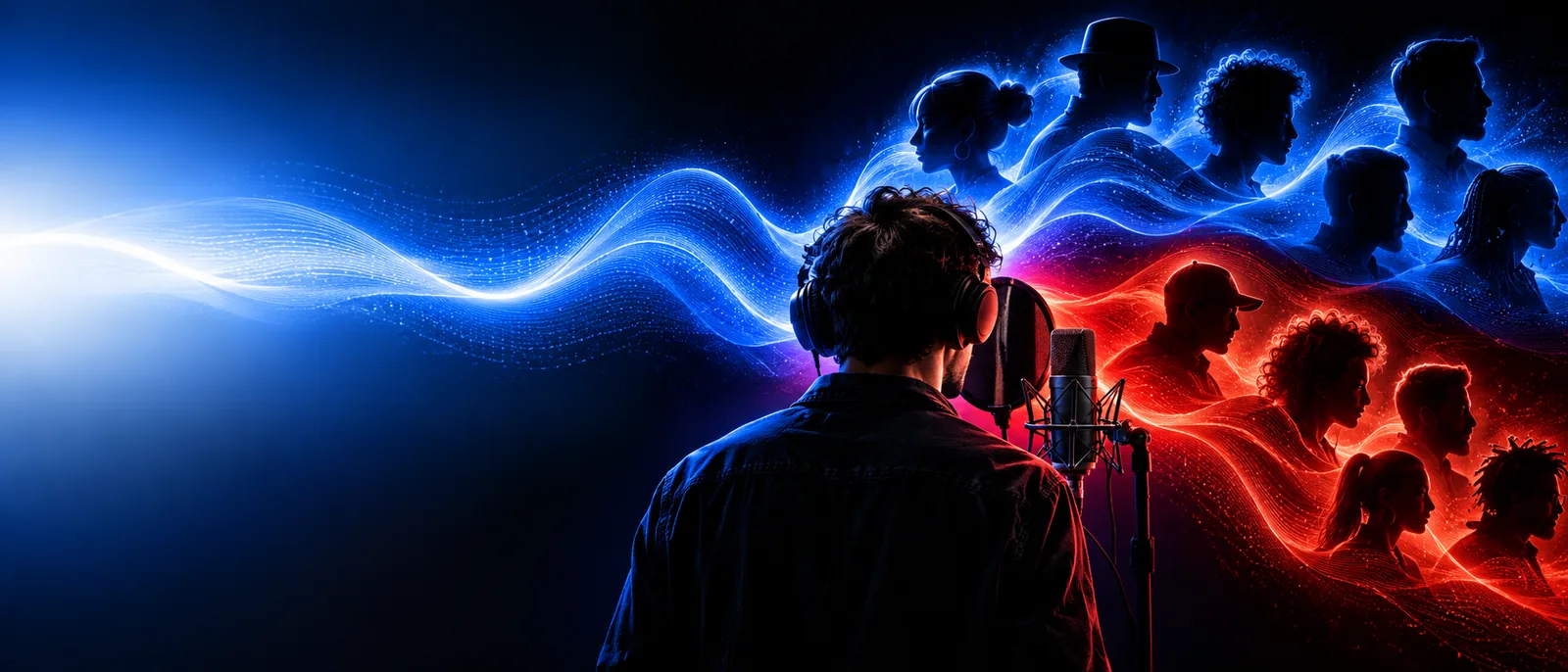
A Roblox voice conversation has several handoffs. Locate the one you need to change before testing effects.
Confirm that voice chat is available to your account and supported in the experience you plan to join. A voice effect cannot enable a conversation that is unavailable.
Identify the mic your device uses and where Roblox receives its input. On a PC, a live effect generally needs an audio route that presents the processed signal as a microphone.
Make a short test in an appropriate setting. Ask whether words remain clear, check for delay or feedback, and keep your original microphone ready if the changed voice becomes hard to understand.
Voicechanger is a starting point for exploring character-voice ideas. These related guides help separate voice design from device setup and live-chat routing; they do not imply that every voice tool connects directly to Roblox.
The useful comparison is not simply unchanged versus dramatic. It is whether the changed voice still lets other players follow you.
| Before: untested effect | After: tested character voice | |
|---|---|---|
| Goal | Choose an effect because its name sounds fun. | Choose a voice that suits a specific character or interaction. |
| Speech | Only judge how the effect sounds on one short word. | Try a full sentence with quiet and excited delivery. |
| Microphone | Assume Roblox will hear whatever you hear in headphones. | Check which input Roblox actually receives. |
| Noise | Ignore keyboard noise, echo and background sound. | Listen for distractions while speaking at a normal volume. |
| Delay | Discover timing problems during a group exchange. | Test whether replies still feel natural before joining. |
| Fallback | Stay on an unclear effect because switching is awkward. | Know how to return to your original microphone. |
Treat the result as a repeatable voice setup, not a single surprising sound. These scenarios call for different tests and different ways to use the result.
You want a recognizable character voice during live dialogue in a supported Roblox experience.
Prepare a short test line, confirm that the processed mic is the selected input, and prioritize intelligible speech over an extreme effect.
You talk with the same friends on Discord as well as in games.
Check each app's microphone selection independently. A setting that works in one app does not establish that the other hears the same source.
You narrate a Roblox moment after recording gameplay rather than speaking live.
Focus on a clear recorded line and edit it alongside the clip; live microphone routing is unnecessary for an edited voiceover.
You want a memorable voice for a brief character entrance.
Try a short, repeatable phrase and leave enough clarity for the joke to land, rather than relying on the effect alone.
These are scenario illustrations, not audio samples or proof of an integration. The meaningful before-and-after test is whether another listener can hear your intended voice clearly through the selected input.
Plan the Roblox voiceCheck every chat inputChoose a character direction, prepare a sentence you would actually say, and listen for clarity before using it with other players. Voicechanger can help you explore the idea; verify live compatibility in your own device and Roblox setup.
For live conversation, it needs to deliver understandable speech through an input Roblox can receive on your device. A striking effect is less useful if it adds distracting delay, obscures words or only changes recordings.
That depends on your voice-chat access, the experience and your device's available audio routing. Test the selected microphone with another listener rather than assuming an effect playing in your headphones is being transmitted.
Not necessarily. If you record narration after gameplay, an edited voice track may be enough; live routing matters when other players must hear the effect as you speak.
The app may be receiving your original microphone rather than a processed input. Check the selected input, make a brief test recording where possible, and confirm what a listener actually hears before changing more settings.
Choose one that fits the character while keeping names, instructions and quick replies understandable. Test a complete sentence at your normal speaking pace; the most exaggerated effect is not always the most usable.