Game chat player
Your local test sounds changed, but other players hear your normal voice.
Check the game's voice-chat input and repeat a listener test before adjusting effects.
Desktop setup
Clownfish voice changer applies effects to a selected microphone on a Windows PC. This guide walks through a test call, explains the available routes, and separates microphone effects from editing a recording.

Check the microphone path before choosing an effect. A voice changer cannot fix an input that the computer cannot hear.
Clownfish needs an installed microphone with an audible signal. An effect cannot create speech from a muted mic, a disconnected headset, or the wrong input device.
What to do instead
Record a short sample with the operating system's recorder first, then select the working microphone in Clownfish.
Clownfish is desktop software, not an effect you can enable merely by opening a web page. Installing and configuring it requires access to the PC.
What to do instead
If installation is not an option, compare browser-based workflows rather than expecting the desktop effect to run in a tab.
Changing live microphone speech is different from uploading an existing clip and exporting a revised file. Do not assume every live effect is suitable for post-production.
What to do instead
Use a recording-oriented workflow when the source is an existing audio file.
A chat or game can select a different microphone, apply its own processing, or retain an old device setting. A working local test does not prove listeners hear the effect.
What to do instead
Run the destination app's microphone test and ask a trusted listener to confirm the result.
Start with a dry microphone test, add one effect, and verify it in the app where you plan to speak.
Connect your headset or microphone and record a sentence without effects. Note which input device works. Install Clownfish from its official source, then check that its microphone installation is enabled for that device.
Open the Clownfish tray menu and select a single voice effect. Speak at a normal level rather than compensating by shouting; distortion can make it harder to tell whether the effect or the input level is the problem.
Open the intended chat or game, select the tested microphone, and use its input check. If the changed voice is absent, return to the dry recording before changing more settings. Disable the effect when the test is finished.
These guides cover nearby questions without treating a desktop microphone effect as interchangeable with every other voice workflow.
Choose by the kind of input and result you need, not by an effect name alone.
| Clownfish desktop workflow | Online voice workflow | |
|---|---|---|
| Starting point | A microphone connected to a PC | A browser-based task, depending on the service |
| Primary use | Applying effects while speaking | Processing or creating voice through an online tool |
| Setup | Install software and configure the microphone | Check the service's input method and requirements |
| Live calls | Test the selected mic inside the calling app | Do not assume a web tool routes audio into a call |
| Existing recordings | Not the same task as editing a saved clip | Check whether the chosen tool accepts uploaded audio |
| Troubleshooting | Check installation, device selection, and app input | Check supported inputs, permissions, and output options |
| Best first test | A dry recording followed by an app mic test | A short sample using the tool's stated workflow |
The most common mismatch is expecting a microphone effect to behave like a saved-audio editor or an automatic input for every app.
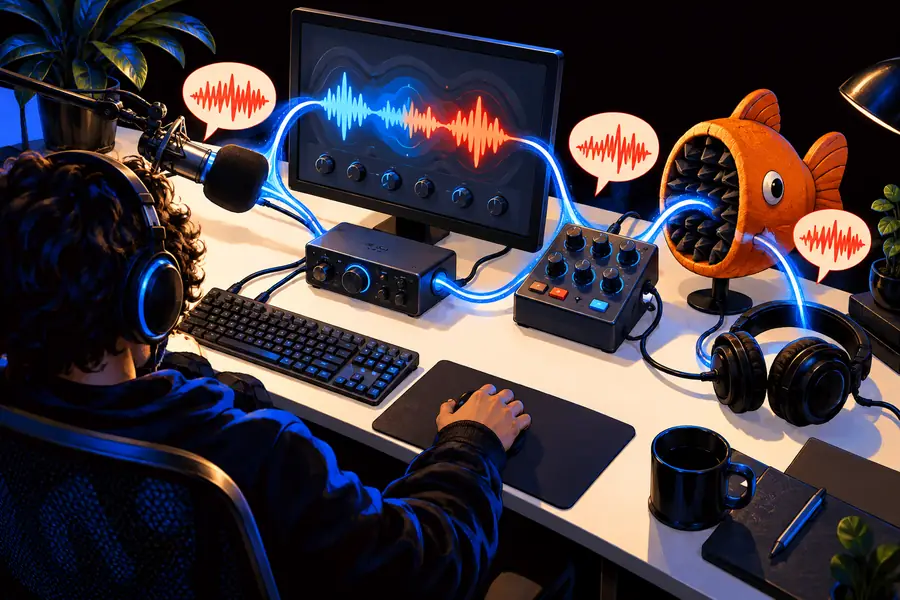
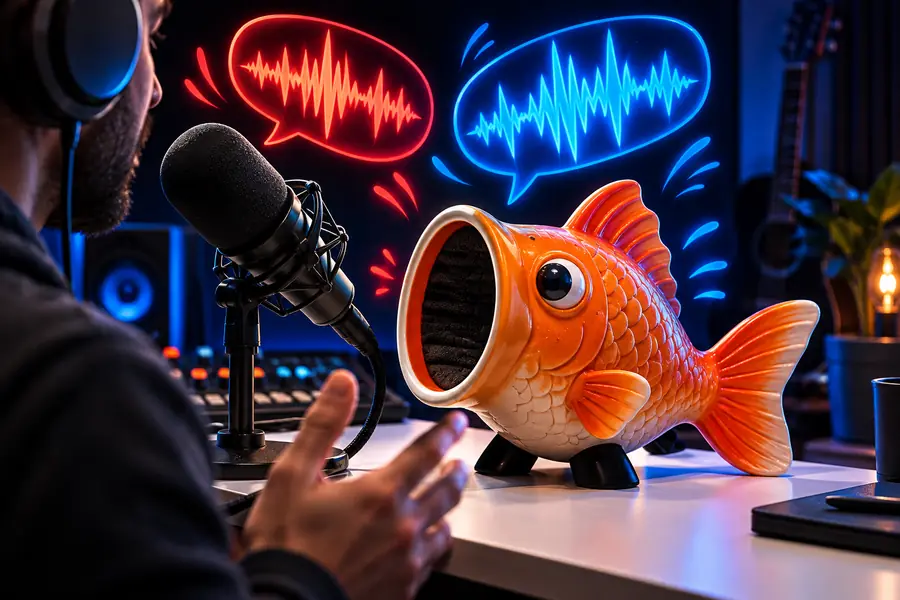
These are illustrations of two workflows, not before-and-after audio results. If listeners hear your unchanged voice, check which microphone the call uses; if you need a new audio file, choose a workflow that explicitly supports one.
Desktop microphone pathOnline tool pathA good next step depends on where the speech starts and where it must be heard.
Your local test sounds changed, but other players hear your normal voice.
Check the game's voice-chat input and repeat a listener test before adjusting effects.
You want to speak through an Android device rather than a Windows PC.
Use a mobile-specific setup guide; desktop installation steps will not transfer directly.
You already have a spoken clip and want to change its sound afterward.
Compare tools by whether they accept your source audio and provide a usable result.
If you are speaking live on a PC, test the microphone path first. If your goal is to work with a recording or explore another voice approach, check the tool's supported input and output before relying on it for a project. Voicechanger can take you to a separate voice service to explore that route.
Clownfish is used to apply effects to microphone speech. Its usefulness in a call depends on the microphone installation and the input selected by the calling app. Test with another listener instead of relying only on what you hear locally.
First confirm the microphone records cleanly without an effect. Then check the Clownfish installation for that device, choose an effect, and verify the destination app uses the same input. Change one setting at a time so you can identify what fixes the signal.
The desktop installation described here is for a PC, not a phone app. For a phone, look for a workflow made for its operating system and check whether it handles live input or saved recordings.
No. The destination app may use another microphone or apply its own audio processing. Select and test the input there, then confirm with someone who can hear the call.
A live microphone effect and editing an existing file are different workflows. If a saved file is your starting point, choose a tool that explicitly accepts recorded audio and check its output options before starting.